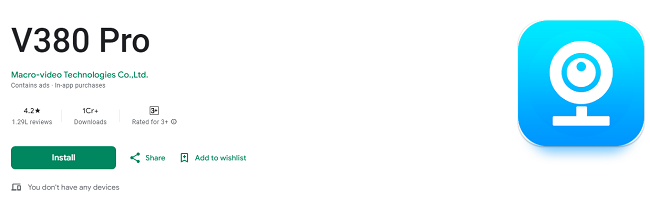
How to Monitor Security Cameras Using V380 Pro App?
The V380 Pro app is a powerful tool for managing and monitoring your security cameras, whether for home, office, or other properties. With features like real-time video streaming, motion detection alerts, and voice talkback, the app ensures you stay connected to your surroundings anytime, anywhere. This guide provides a comprehensive, step-by-step walkthrough on how to monitor security cameras using the V380 Pro app.
What is the V380 Pro App?
The V380 Pro app is a smartphone application designed to control and monitor Wi-Fi-enabled security cameras. It supports features like live video streaming, recording playback, motion detection alerts, and cloud storage. Compatible with both Android and iOS devices, the app provides a seamless experience for users to keep an eye on their property remotely.
Why Use the V380 Pro App for Monitoring?
Here are some reasons why the V380 Pro app is a preferred choice for security camera monitoring:
Remote Access: View your camera feed from anywhere in the world.
Real-Time Alerts: Receive instant notifications for any suspicious activity.
User-Friendly Interface: Easy setup and operation for all users.
Cloud Storage: Securely save recordings to the cloud for future reference.
Two-Way Communication: Use the voice talkback feature to communicate via the camera.
How to Set Up V380 Pro App to Monitor Security Cameras?
Before you start monitoring, ensure the app is properly set up with your security cameras.
Step 1: Install the App
Download the V380 Pro app from the Google Play Store (Android) or Apple App Store (iOS).
Install the app and launch it.
Step 2: Create an Account
Open the app and register with your email address.
Verify your account through the confirmation email.
Step 3: Connect Your Camera
Power on Your Camera: Ensure the security camera is powered and connected to Wi-Fi.
Add Camera to the App:
In the app, tap “Add Device.”
Choose the method to connect (Wi-Fi setup or QR code).
Follow the on-screen instructions to pair your camera with the app.
Step 4: Configure Camera Settings
Customize settings such as motion detection sensitivity, resolution, and notifications to suit your preferences.
How to Monitor Security Cameras Using V380 Pro?
1. Accessing Live Video Feeds
The app allows you to view live video from your connected cameras in real-time.
Steps:
Open the V380 Pro app and log in.
On the home screen, select the camera you want to monitor.
Tap “Live View” to access the live feed.
Use the controls to zoom in/out, adjust the viewing angle (if supported by the camera), and toggle audio on/off.
Tips for Better Monitoring:
Ensure your camera is placed in a location with good lighting for clearer video.
Use the app’s full-screen mode for a better viewing experience.
2. Reviewing Recorded Footage
The V380 Pro app stores recordings either on the camera’s SD card or in the cloud, depending on your setup.
Steps to Access Recordings:
Go to the camera’s settings in the app.
Tap “Playback” or “Recordings.”
Choose the date and time of the footage you want to review.
Use the playback controls to pause, rewind, or fast-forward the video.
Advantages of Cloud Storage:
Access recordings even if the camera is damaged or stolen.
High-level encryption ensures data security.
3. Using Motion Detection Alerts
The motion detection feature notifies you of any unusual activity in the camera’s view.
How to Enable Motion Detection:
In the app, go to the camera’s settings.
Enable Motion Detection.
Adjust the sensitivity level to minimize false alarms.
Set up notification preferences to receive alerts via the app or email.
Benefits:
Stay updated on suspicious activities instantly.
View a snapshot or short video clip of the detected motion directly from the alert.
4. Voice Talkback Feature
The V380 Pro app’s two-way audio feature allows you to communicate through the camera.
Steps to Use Voice Talkback:
Open the live feed of the camera.
Tap the Microphone icon.
Speak into your device, and your voice will play through the camera’s speaker.
Common Use Cases:
Greet visitors at your door.
Warn potential intruders.
Communicate with family members or pets.
5. Managing Multiple Cameras
If you have several security cameras, the V380 Pro app makes it easy to monitor them all.
How to Add Multiple Cameras:
Follow the camera setup process for each device.
Each camera will appear on your home screen as a separate device.
Tap on a camera to access its feed.
Tips for Managing Multiple Cameras:
Label each camera based on its location (e.g., Front Door, Living Room).
Use the app’s multi-camera view to monitor all feeds simultaneously.
Advanced Features for Enhanced Monitoring
1. Custom Alerts
Set up customized notifications for specific events, such as detecting movement in restricted zones.
2. Privacy Mode
Enable privacy mode to turn off the camera when you don’t want monitoring.
3. Scheduling
Schedule monitoring times to activate the camera only during specific hours, such as when you’re away.
4. Pan, Tilt, and Zoom (PTZ)
If your camera supports PTZ, use the app to adjust the viewing angle and zoom in on specific areas.
Troubleshooting Common Issues
1. Camera Not Connecting
Ensure the camera is powered and connected to Wi-Fi.
Reset the camera and try the setup process again.
2. Video Feed Not Loading
Check your internet connection.
Restart the app and your camera.
3. Motion Alerts Not Working
Verify that motion detection is enabled in the app.
Adjust the sensitivity settings to suit your environment.
Frequently Asked Questions
1. Can I monitor my cameras without Wi-Fi?
No, the V380 Pro app requires a stable internet connection to access live feeds and receive alerts.
2. How many cameras can I connect to the app?
The app supports multiple cameras, and you can monitor all of them from a single account.
3. Is the V380 Pro app free to use?
The app is free to download and use. However, cloud storage and some advanced features may require a subscription.
4. Can I monitor cameras from multiple locations?
Yes, as long as all cameras are connected to the internet and linked to the same app account.
5. How do I ensure the app’s security?
Enable two-factor authentication and use a strong password for your account to keep your data secure.
Conclusion
The V380 Pro app is an excellent tool for monitoring security cameras, offering a range of features to enhance your safety and convenience. With easy setup, real-time alerts, and advanced options like two-way communication and playback, the app ensures you stay connected to your property at all times. Follow this guide to make the most of your V380 Pro app and take control of your security today.
Trending Now
Updates